
Personal shortcuts
Shortcuts appear beneath the new-conversation input, organized into groups. Administrators maintain the enterprise defaults; open Personalization → Shortcuts to make your own permitted adjustments.
Where shortcuts appear
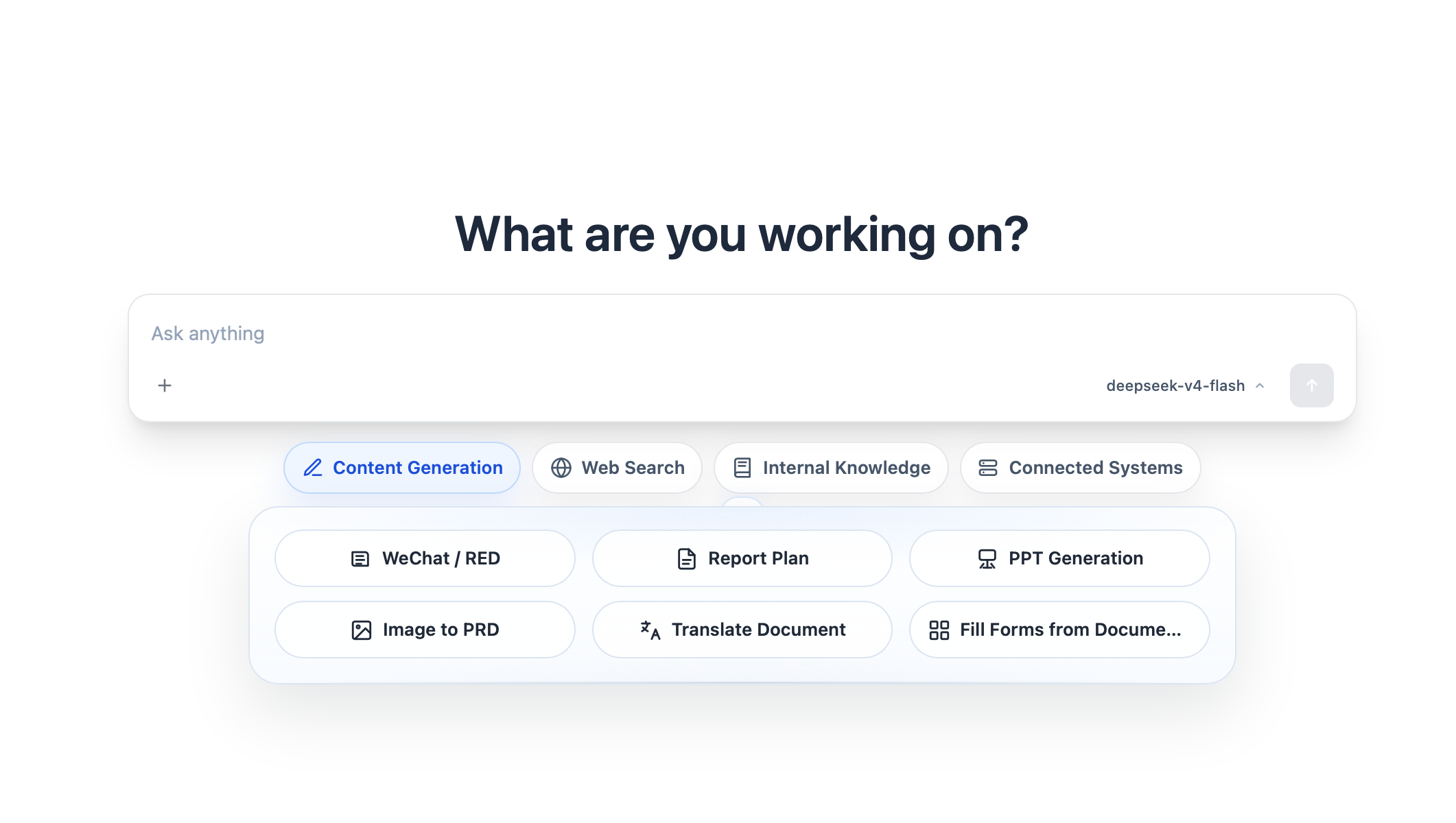
Open New chat and choose a task category such as Content Generation beneath the input. The buttons shown below it—such as WeChat / RED and Report Plan—are the shortcuts configured by an administrator or adjusted in your personal preferences. A Prompt shortcut inserts text; a Skill shortcut selects its Skill, subject to normal access checks.
Adjust shortcuts in Personalization
Open Personalization → Shortcuts from your account menu. This page contains enterprise groups and any personal group you create.
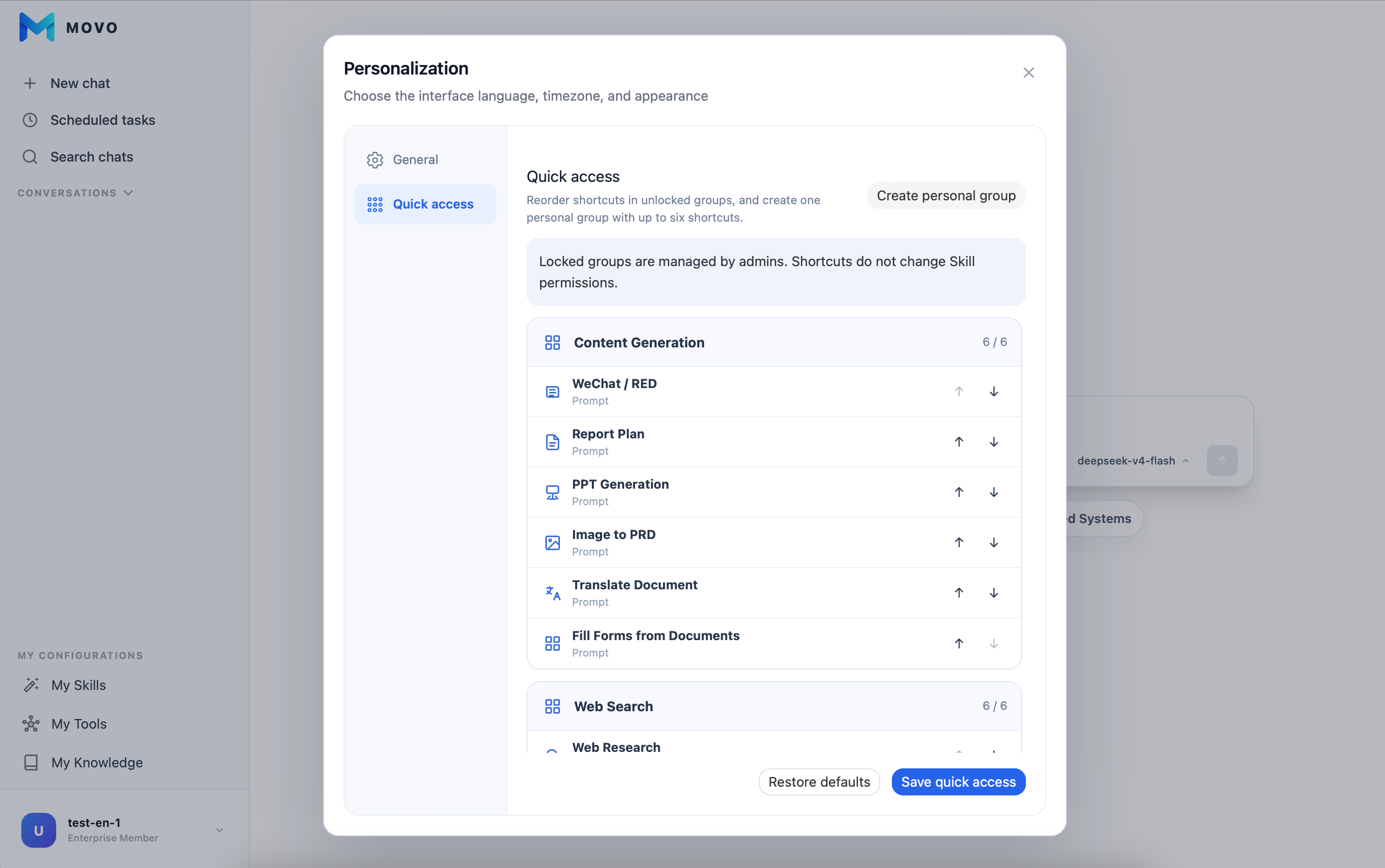
This is the employee's personal settings view, not the admin editor. They serve different purposes:
| Location | What you can do | What you cannot do |
|---|---|---|
| Admin console → Settings → Shortcuts | Create and reorder enterprise groups, set entries and icons, lock groups | Create an employee's personal group for them |
| User workspace → Personalization → Shortcuts | Reorder entries within unlocked enterprise groups; create one personal group with your own Prompt or Skill entries | Rename enterprise groups, change their icons or prompt contents, or edit locked groups |
The two views use separate controls. Personal preferences apply only to your account and do not overwrite the administrator's default configuration.
Reorder enterprise entries
Expand an unlocked enterprise group and use the arrows beside an entry to reorder it within that group. Click Save shortcuts afterward. Locked groups are maintained by administrators and cannot be changed here. Your preferences do not change the default for other employees.
Create a personal group
Click Create personal group and give it a name. You can have one personal group with up to 6 entries. You can rename or delete the group; deleting it removes its personal entries as well.
Click Add frequently used entry inside your personal group and select a type:
- Prompt: Enter a label and prompt text. The shortcut inserts that prompt into the conversation.
- Skill: Select an available personal or enterprise Skill. Clicking the shortcut automatically selects it, but never bypasses its enabled state or access controls.
Personal entries can be reordered or removed. Click Save shortcuts to keep your changes. Restore defaults removes your personal changes, including the personal group, and reapplies the enterprise order.
Administrators can read Default shortcuts for configuration details.