
My Knowledge: organize, share and discuss
My Knowledge stores documents uploaded by you and lets you share them with members of the same workspace. It is separate from enterprise knowledge documents. Ask questions about documents in the unified conversation, not in the document details panel.
Directories and document list
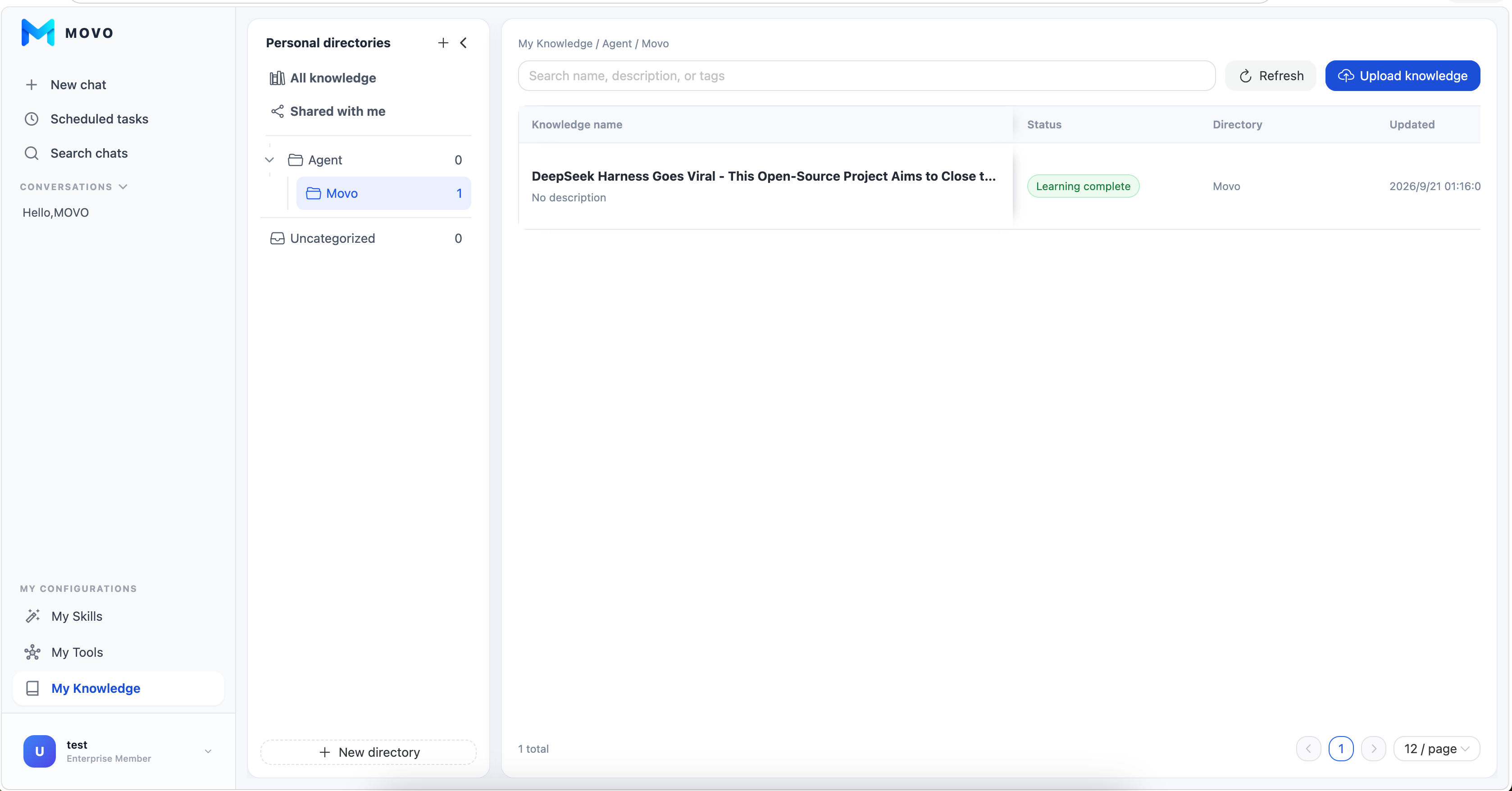
Open My Knowledge from the user sidebar. The directory pane contains All Knowledge, Shared with me, Uncategorized, and your own nested directories. Create a directory with New directory; directory actions let you rename, move, or delete it. Deal with its contents before deleting a nonempty directory.
The list shows each document's name, learning status, directory, and update time. Search by name, description, or tag; use Refresh to retrieve the latest status. Your own documents can be moved or deleted. Select a document name to open its details. Shared documents have a share marker. If learning fails, use the status control to retry.
Upload and check learning
- Select the destination directory, then click Upload knowledge.
- Choose a local document and finish the upload dialog.
- Watch its status in the list. A successful upload is not yet searchable; wait for Learning complete.
- If learning fails, use the status control to retry. For repeated failures, ask an administrator to check document parsing and vector storage.
Moving a document changes its organization, not its contents. Open its details to read the document in the scrolling preview.
Share and receive documents
Open a document you own and click Share knowledge. Select members in the same workspace. A recipient allowed to reshare may share onward; Permission management shows recipients and lets the owner control resharing or revoke access.
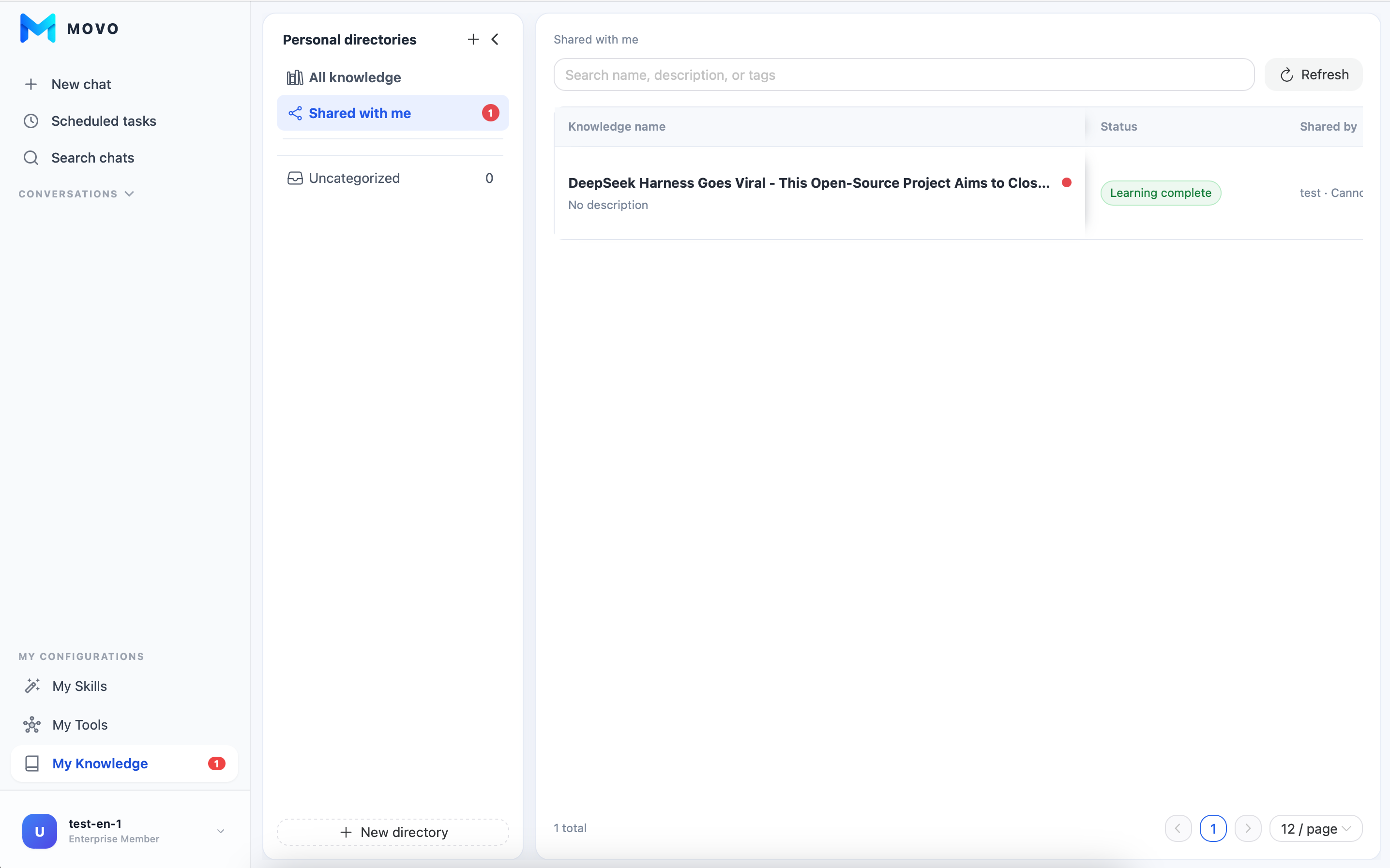
Recipients see the document under Shared with me, including its source and unread indicator. Opening the details marks the share notice as read. If the owner deletes the original or access is revoked, recipients can no longer use it under the old grant; a deleted-document notice can be dismissed from the list.
Sharing is not copying
Sharing grants access to the current document; it does not create an independent copy owned by the recipient.
Preview, comments and likes
The details view has a continuously scrolling preview on the left. On the right, available tabs include Comments & Likes, Knowledge information, and Permission management, depending on your access. You can post a comment, reply to an existing comment, and like a document or comment. Notification indicators draw attention to new activity.
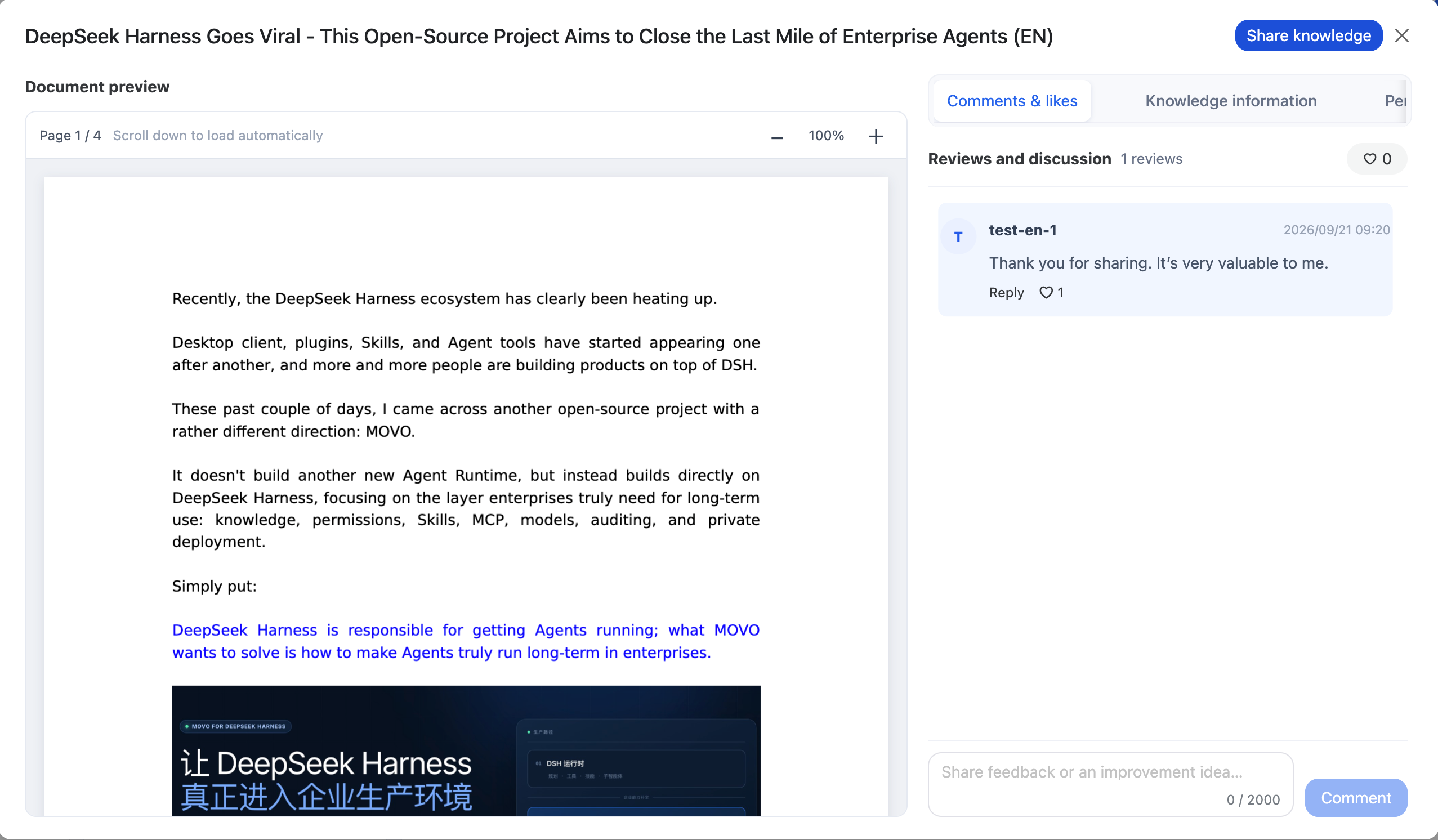
Comments are for discussing the document, not editing its contents. To ask about the material, return to a conversation and use internal knowledge; inspect the answer's sources in the conversation.