
Organization, roles and quotas
Organization and Users separates management identities, enterprise employees, position-based access and Token quotas across four pages: Account Groups and Accounts, User Management, Position Roles and Traffic Allocation.
Admin accounts and employee users represent different identities:
| Page | Managed identity | Primary purpose |
|---|---|---|
| Account Groups and Accounts | Admin-console accounts | Control who can sign in to the enterprise admin console and which administrative role they receive |
| User Management | Enterprise employees | Maintain organization membership, user-workspace sign-in, position capabilities and resource access |
Keep the identities separate
People who administer models, Skills, knowledge, the organization or audit data belong under Account Groups and Accounts. Employees who use the MOVO user workspace for daily Agent work belong under User Management.
Account Groups and Accounts: admin sign-in
This page manages accounts that can sign in to the enterprise admin console. It is not the employee directory. A new account receives a sign-in name and initial password and can use the admin console after creation.
Administrative responsibilities can be assigned as platform administrator, organization administrator, auditor or operator, with account groups for classification. The page supports:
- Search by sign-in name, personal name or email.
- Filter by account group and enabled state.
- Create, edit and remove account groups.
- Add an admin account with an initial password.
- Maintain name, email, phone, group, administrative role and enabled state.
- Identify and protect system-managed accounts.
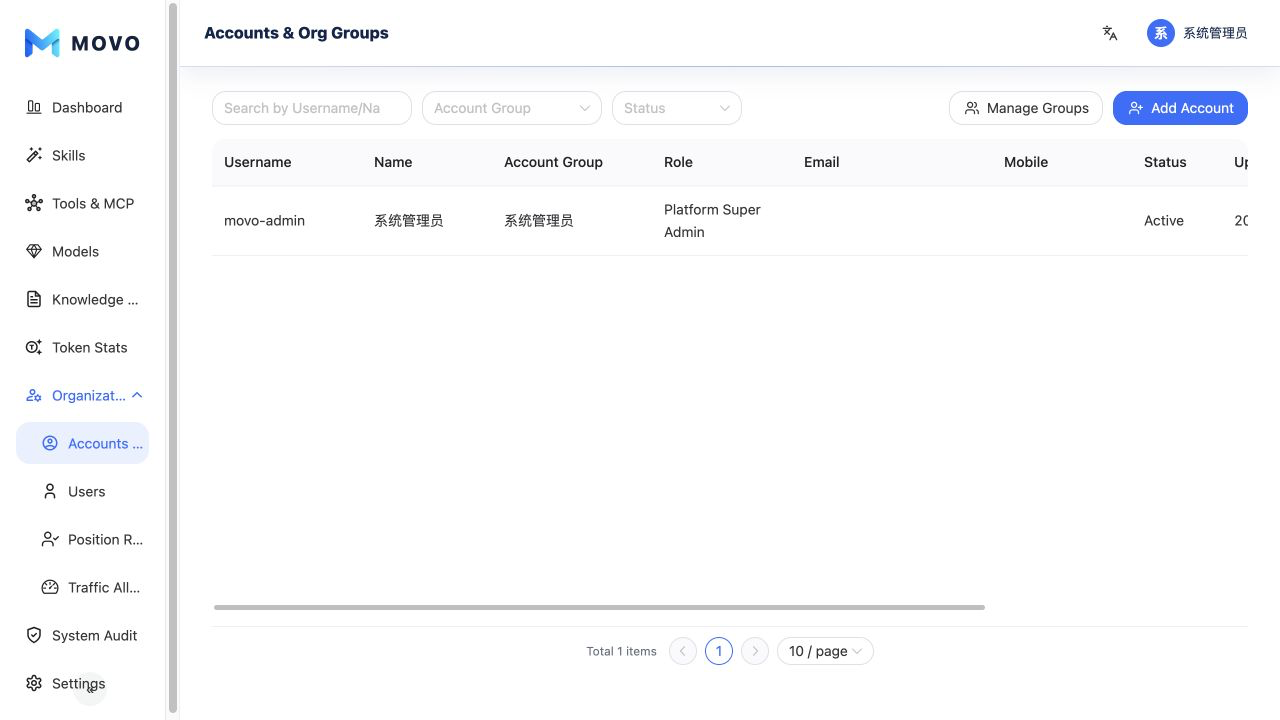
Disabling an admin account prevents it from signing in to the admin console. Assign the narrowest administrative role needed and avoid creating admin identities for ordinary employees.
User Management: enterprise employees
User Management maintains employees and their MOVO user-workspace identities. The organization tree is shown on the left, with employees in the selected scope on the right.
Administrators can:
- Add, edit, move and remove departments.
- Invite employees or create employee accounts and user-workspace credentials directly.
- Maintain names, phones, emails, primary departments and additional departments.
- Assign a primary position role and additional position roles.
- Assign position roles to several employees at once.
- Disable an employee who leaves or temporarily stops using MOVO.
- Define custom employee fields and control required, masked and enabled states.
- Grant an individual temporary capability exception with a reason and expiration time.
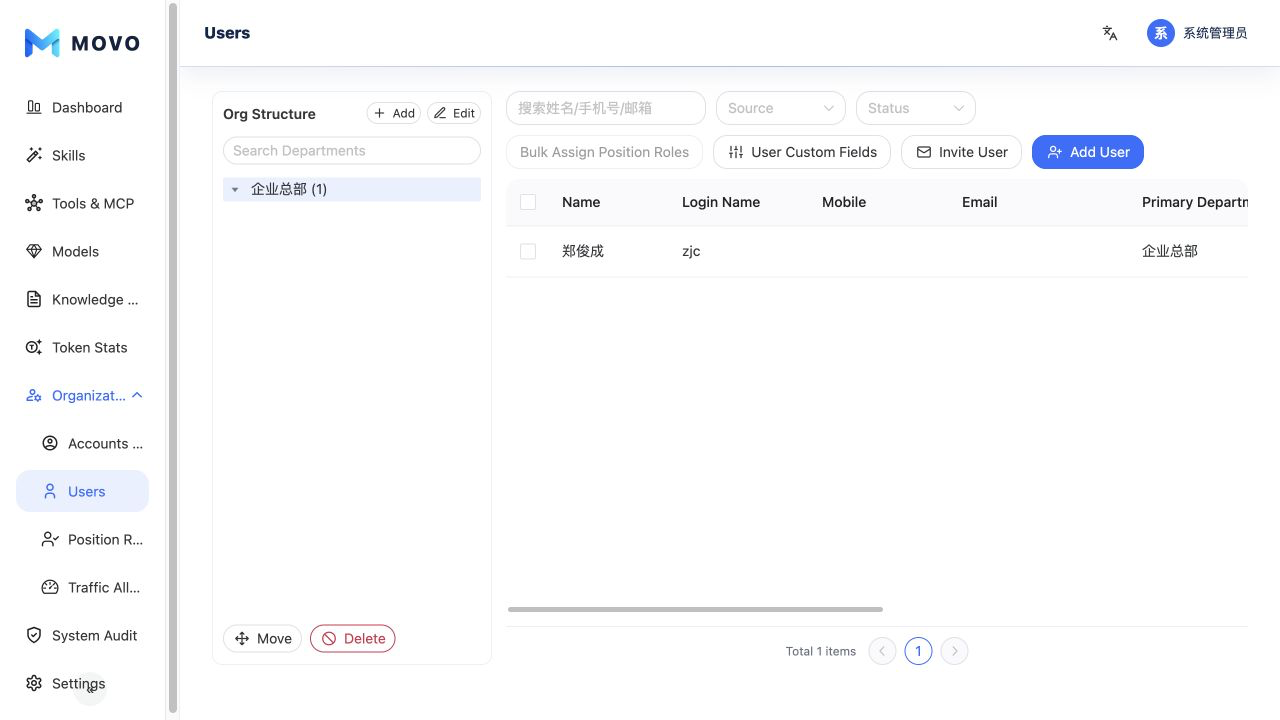
Long-term access should come from position roles. Temporary grants are for short-lived exceptions and should not replace role governance.
Invite employees to register
Under User Management, select Invite users and set the lifetime, default department and one position role. If the organization has departments or roles, the corresponding selection is required; it may be empty only when none exist. One invitation code can register multiple employees, making it suitable for a whole department. Registration stops when the invitation expires or is revoked.
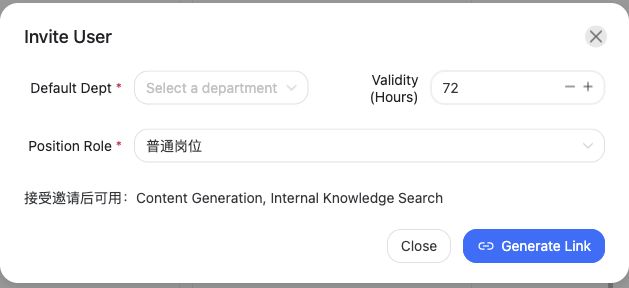
- Browser users can open the invitation link to prefill the code in the registration dialog. Desktop users can select Have an invitation code? Register on the sign-in screen and enter the code manually.
- Employees provide a username, name and password; email is optional. After registration, they sign in with the new account. The invitation assigns their department and position role.
- Open Invitation history to review existing invitations. Filter and paginate the list by department or status, then open an invitation to page through employees who joined with it, copy its link or code, or revoke an active invitation.
Before sharing a link, check that it points to the organization's public user-workspace address. Administrators can also add employee accounts directly.
Position Roles
A position role defines the Agent capabilities and resources visible to employees in the user workspace. Each employee has a primary position role and may also receive additional roles.
Position roles can control:
- Content generation, image generation, code generation, browser automation and internal knowledge.
- Access to all enterprise Tools or only selected Tools.
- Access to all current and future enterprise Skills or only selected Skills.
- Whether the role itself is enabled.
Administrators can create, edit, copy and disable roles, making access templates reusable by department, job or responsibility.
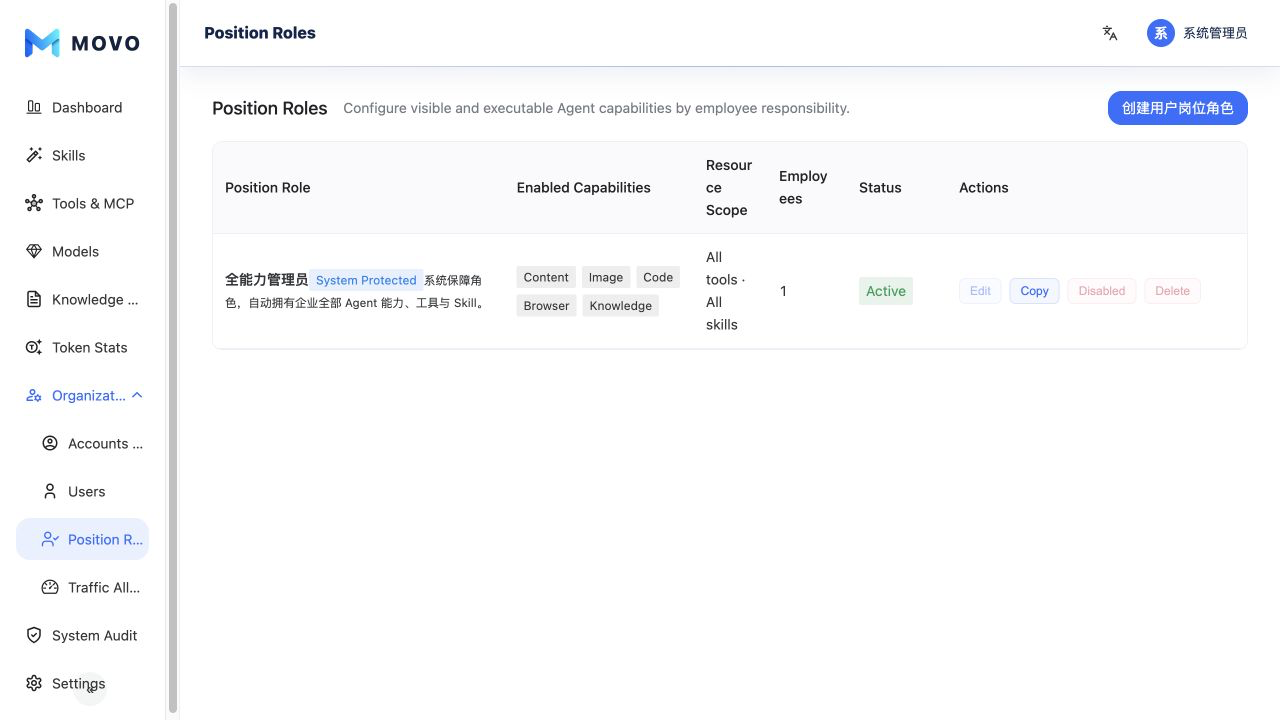
Start with the minimum capabilities required. Give temporary exceptions a clear scope and expiration, and review them through the system audit.
Traffic Allocation
Traffic Allocation controls the model Token capacity available to the enterprise and its employees in each quota period. The page shows the enterprise quota, usage, remaining Tokens, default member quota and custom-quota users. Administrators can change enterprise or individual quotas and review allocation history.
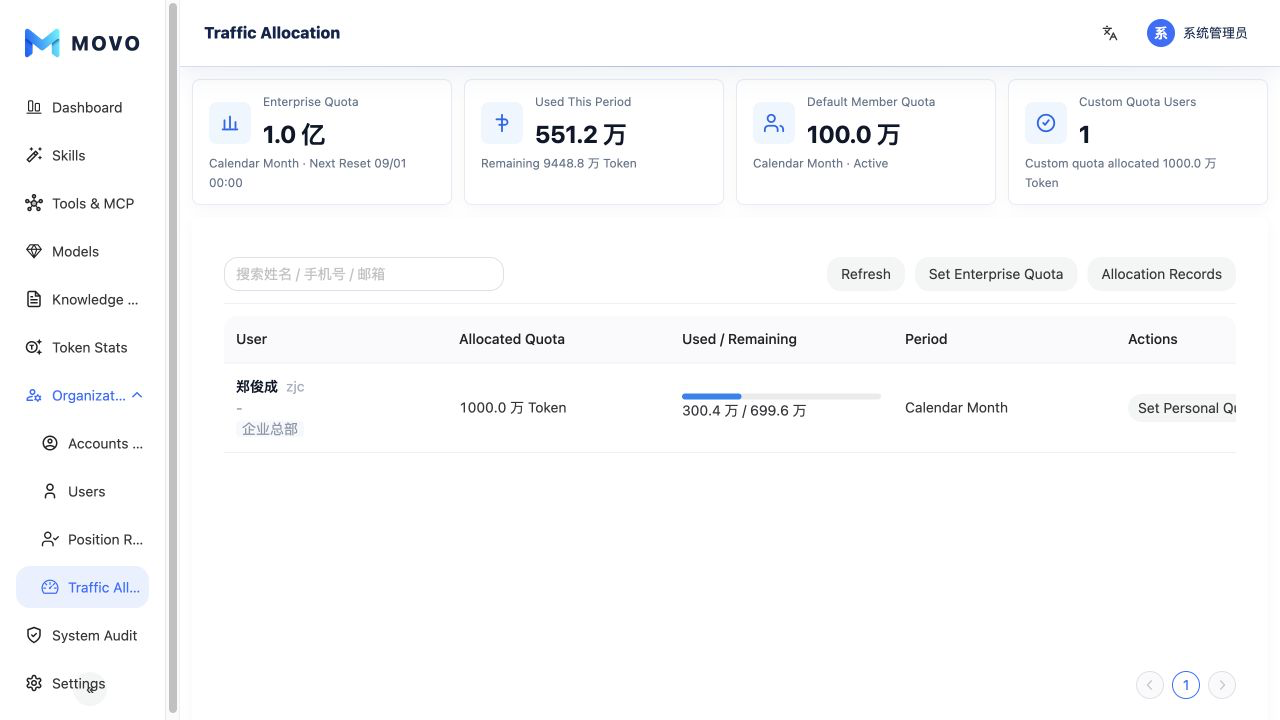
The enterprise quota is the organization-wide limit. The default member quota applies when an employee has no individual configuration, while an individual quota overrides the default for a particular role or project.
Quota controls govern cost and capacity, not model or Agent permissions. A successful request requires an active employee identity, permitted resources, an available model and remaining quota.